
Outlook Express
Email Setup
Detailed instructions for setting up your Outlook Express email client:
These
instructions are based on Outlook Express 6.0, but should work for prior
versions.
 | Startup Outlook Express, then click Tools, then Accounts, then Add, then Mail |
| Enter your name as
you would like it to appear, and then click Next (eg: John Doe)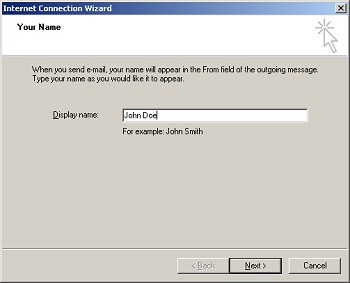 |
| Enter your full
email address, and click Next (eg: jdoe@mydomain.com)
Your email address displayed here can be any combination of UPPER
CASE or lower case letters.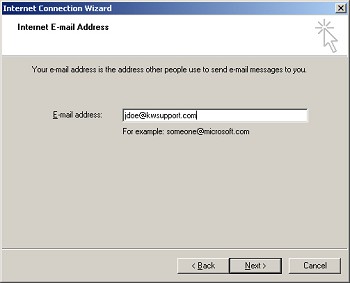 |
| Enter your POP3 mail
server name (eg: mail.yourdomain.com) for both incoming &
outgoing mail server, and click Next.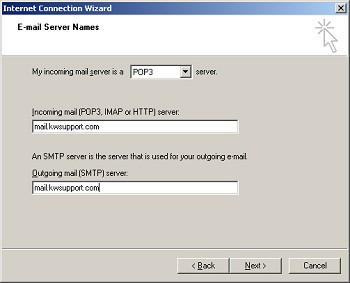 |
| Enter your account
name (same as your full email address) and password, and
click Next (eg: jdoe@yourdomain.com)
Please note that your Account Name and Password should be in lower
case.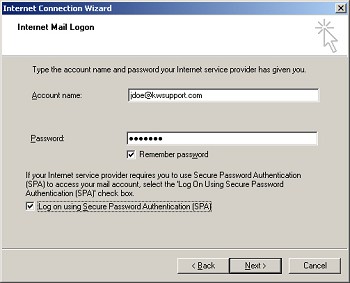 |
| Click Next, then Finish. The Internet Accounts window redisplays. |
| Click on the Mail tab, and then highlight the Account you just created. |
| Click on Properties, then Servers |
| Click on the box
labeled 'My server requires authentication'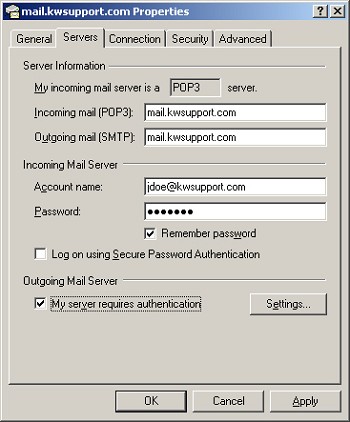 |
| Click Apply, then OK, then Close |
